Learn all there is to know to start paying your bills with Built Pay.=
You can pay your bills via bank transfers or credit cards - even if your vendors and recipients only accept paper checks or bank transfers.
Bill-paying in Built Pay: an overview
Once your Built Pay account is set up, you can pay and pre-schedule payments for your projects’ bills. The entire process can be summed up in 3 steps:
- Choose a bill or batch of bills to pay - You can view the full list on the Pay Bills dashboard under Received.
- Choose how you'd like to pay - Bank transfers, debit card or you can use a credit card to extend your cash flow and get rewards.
- Choose how your vendor receives the payment - Let vendors receive funds via a bank transfer (ACH), wire transfer or a mail-delivered paper check, all with your business name clearly displayed.
NOTES:
- Your first payment takes an extra few minutes. This is because you need to set up your preferred payment and delivery methods and enter your legal business information (if you haven't already).
- You and your vendor will get updated by email when payments are set and when they're processed.
How to pay for a bill or a batch of bills
Pay a single bill:
- Log in to Built Pay.
- Go to your Pay Bills dashboard.
- Select the bill you'd like to pay from the Received list.
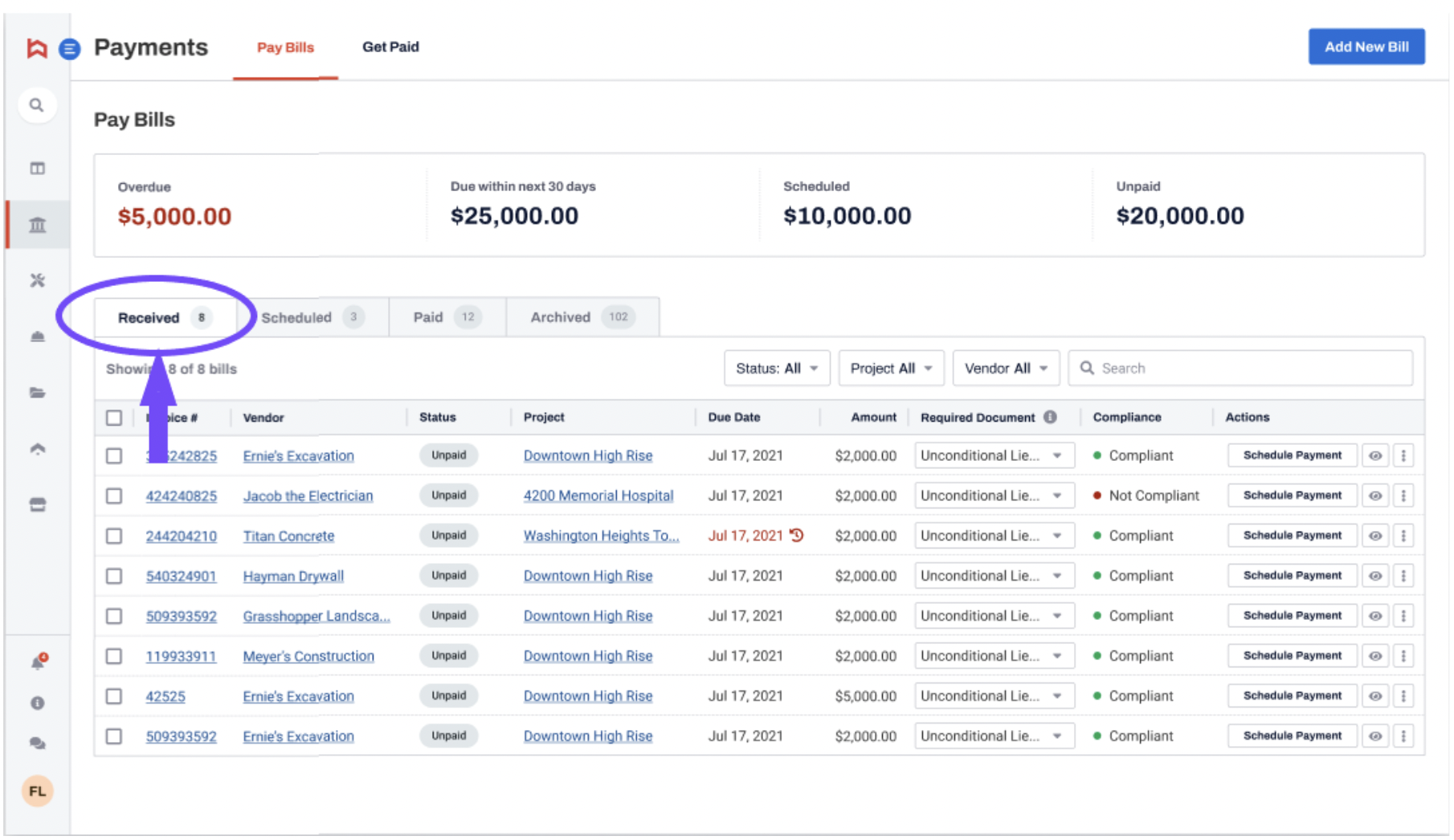
- Click Schedule Payment.
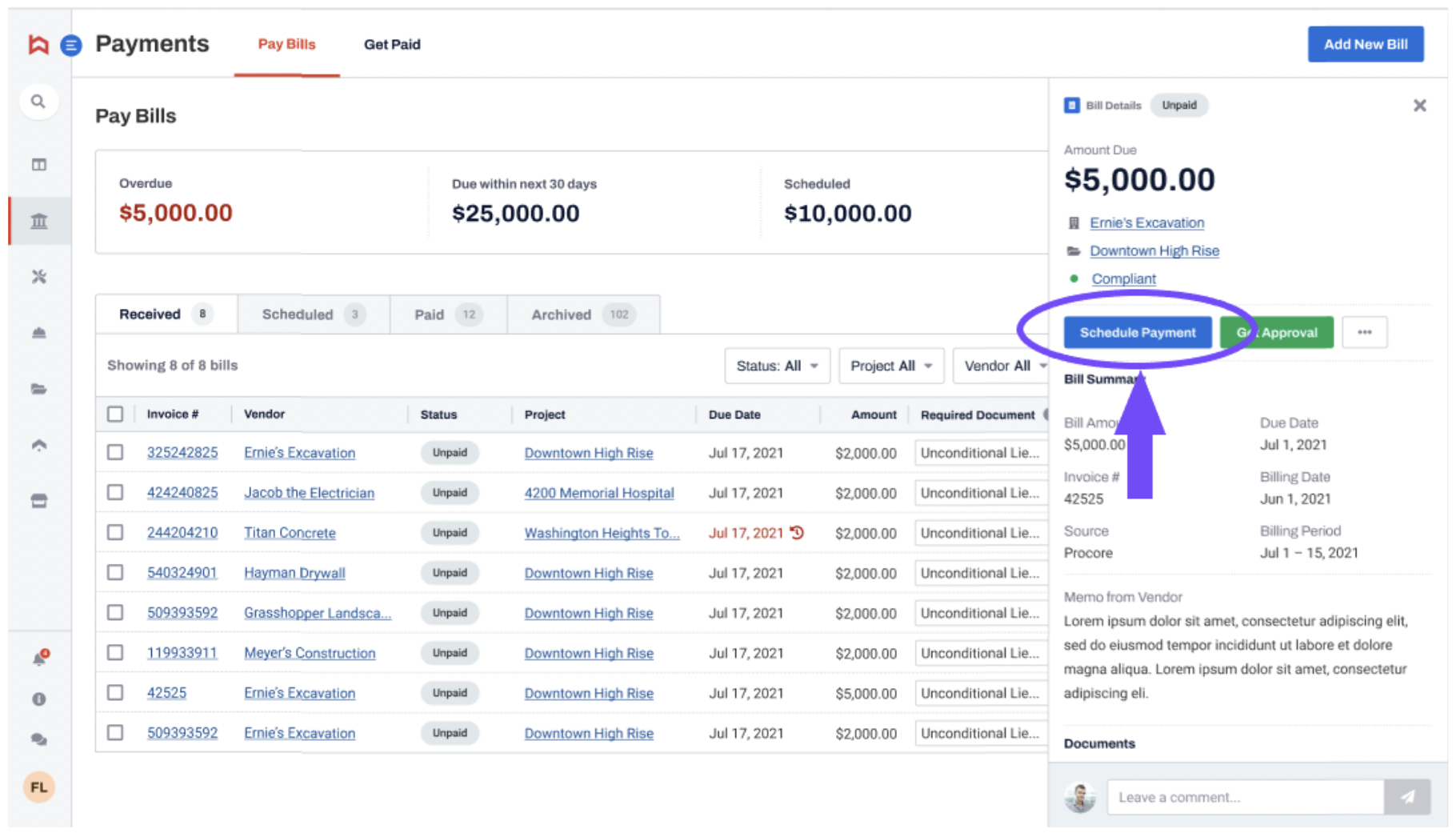
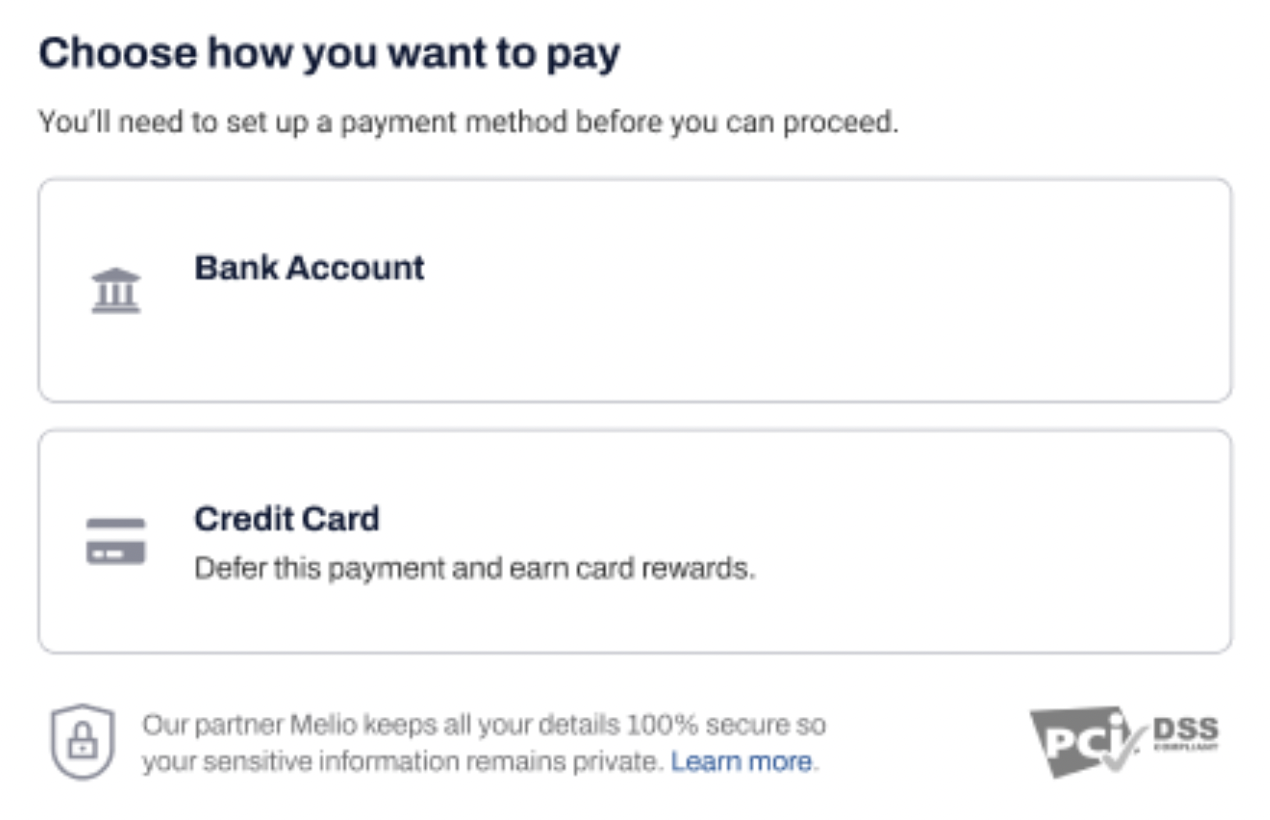
- Connect a payment method.
~ Bank transfer (make an ACH transaction or link your debit card. Takes 3 full business days, 4 days for payments over $100K).
~ Credit card (extends float and earns rewards, processed next day). - When you've finished connecting the payment option, choose it to pay your current bill.
- Choose how the payee will receive this payment:
~ Bank transfer (ACH) - takes 3 full business days to arrive. You'll need to fill in the vendor’s routing number and bank account details.
~ Wire transfer - takes 1 hour plus the time it takes to collect your funds from the payment source you selected. You'll need to fill in the vendor’s routing number and bank account details.
~ Paper check - mailed to your vendor and takes approximately 7 business days to arrive. There is an option for a fast check that takes 3 business days to arrive. You'll need to fill in the vendor’s business address.
~ Ask vendor for payment details - If you don’t know the vendor’s information select Ask vendor for payment details. Your vendor will be able to choose how to receive your payment and fill in the correct details.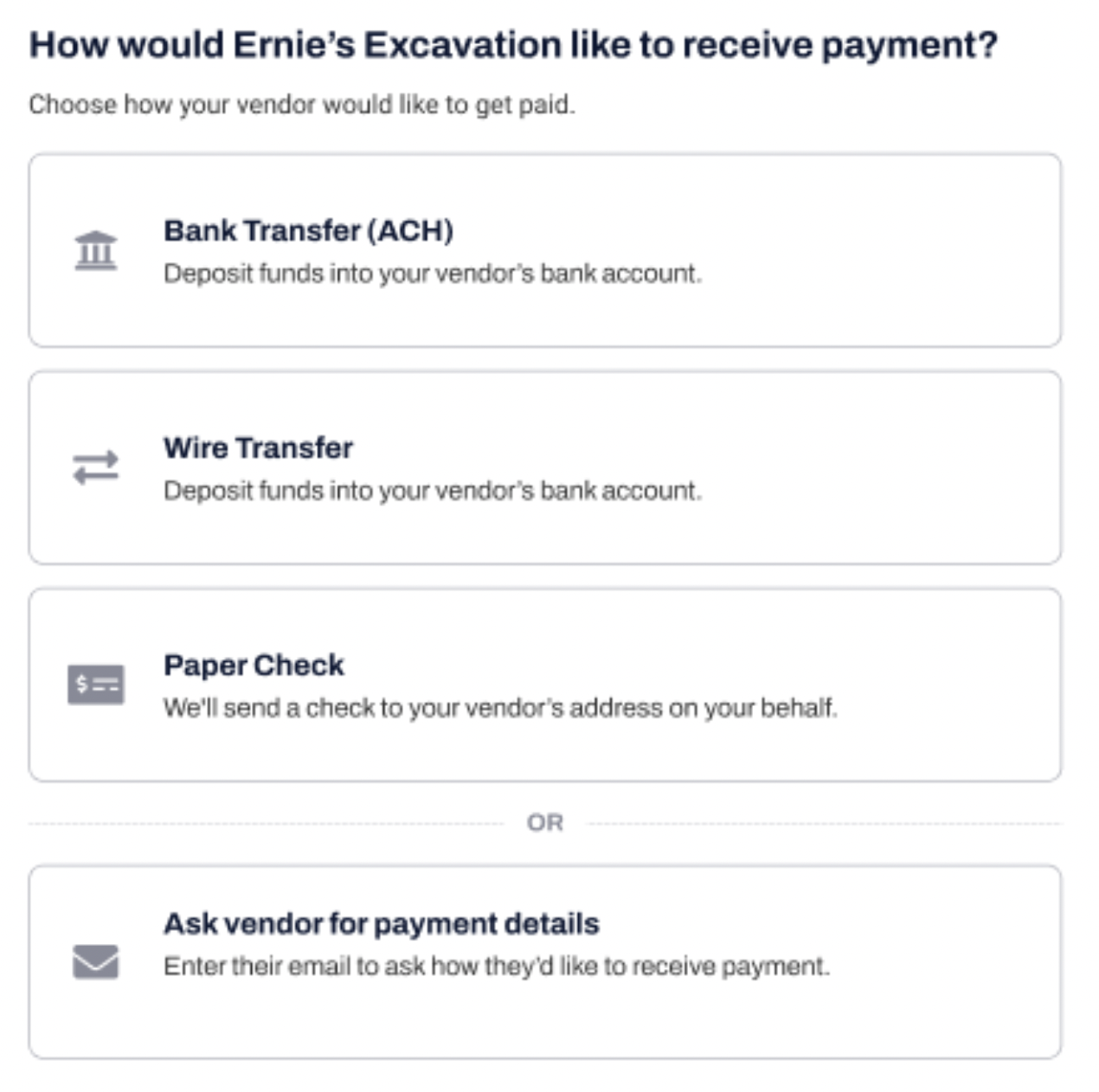
- Pick the day you want the payment to go out. The different colors can help you to clearly schedule your payment:
~ Blue indicates the date that the payment will be deducted.
~ Green indicates the date your payment will arrive according to the method you chose.
~ The red triangle indicates the bill due date.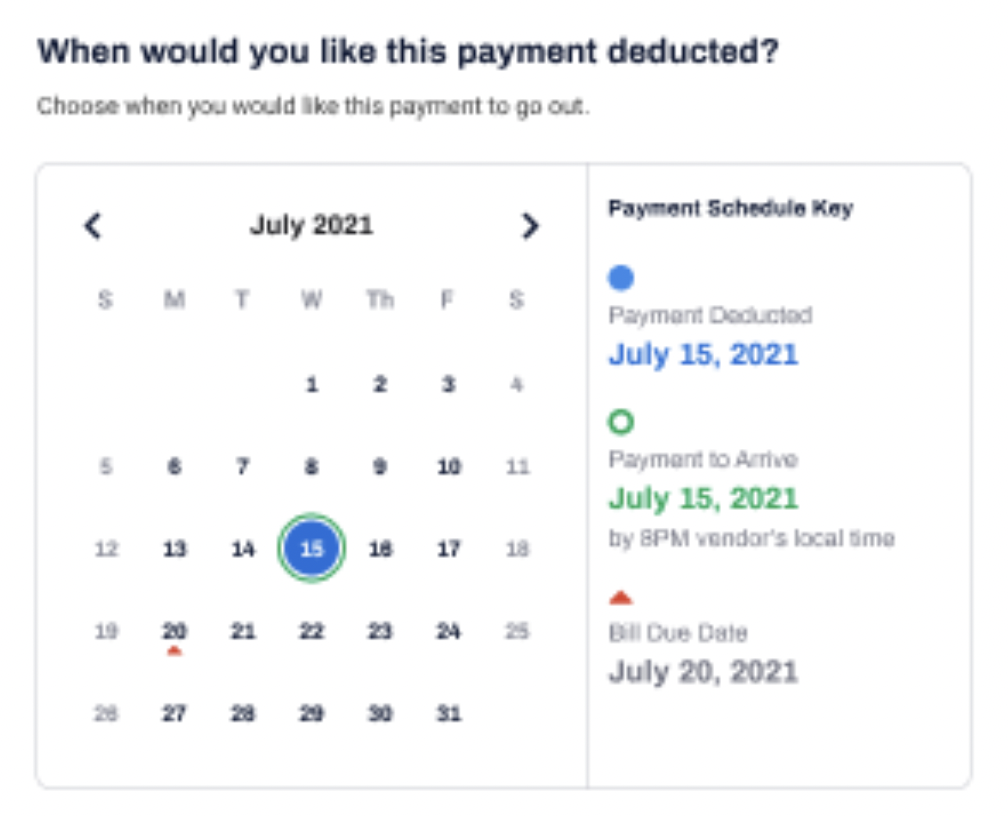
- Review your payment.
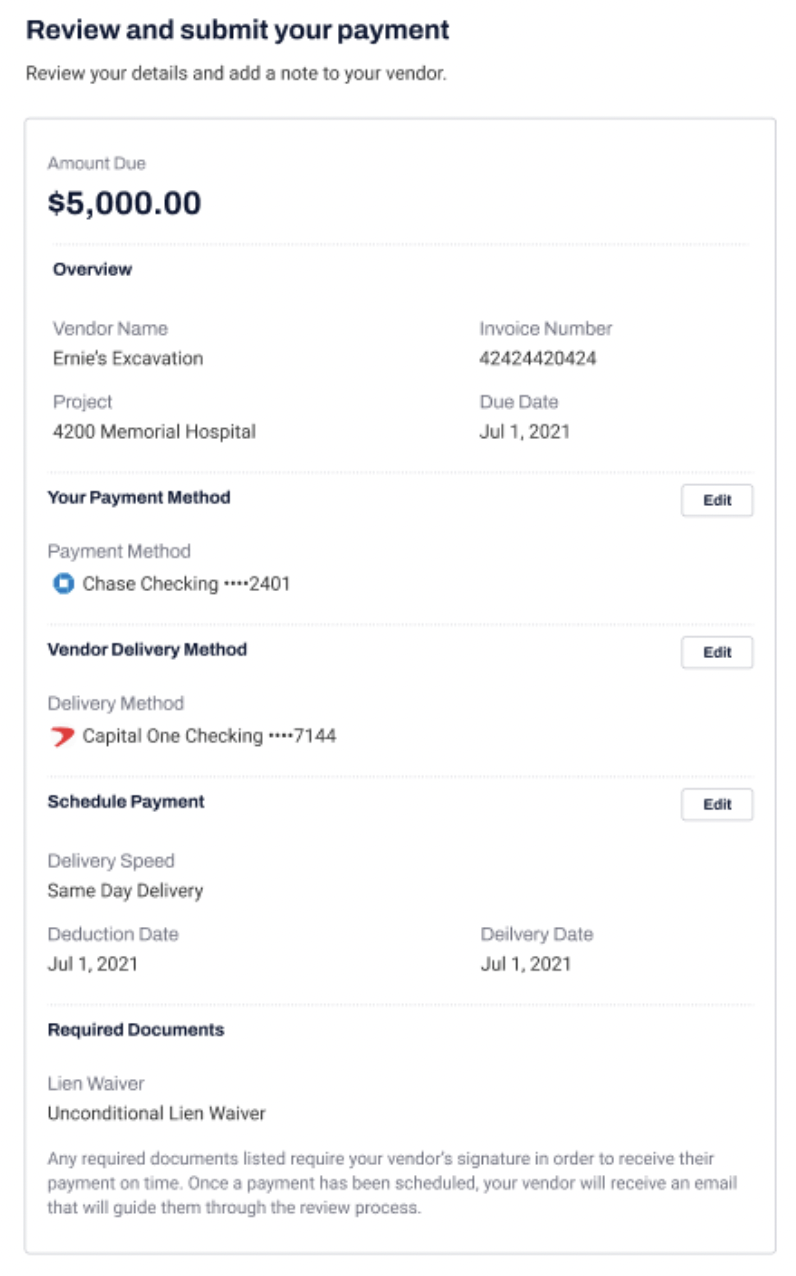
- Click Schedule Payment, and your payment's all set!
Once scheduled, we'll send you a notification email with all the details. If you're paying with a check your vendor will also be notified by email that the payment was scheduled.
Your scheduled payment details are also available under Scheduled in the Pay Bills dashboard.
When the payment is processed, both you and the payment's receiver will each get an email notification.
NOTE: For your first payment, you may be required to enter your business’ tax info.
Pay a batch of bills:
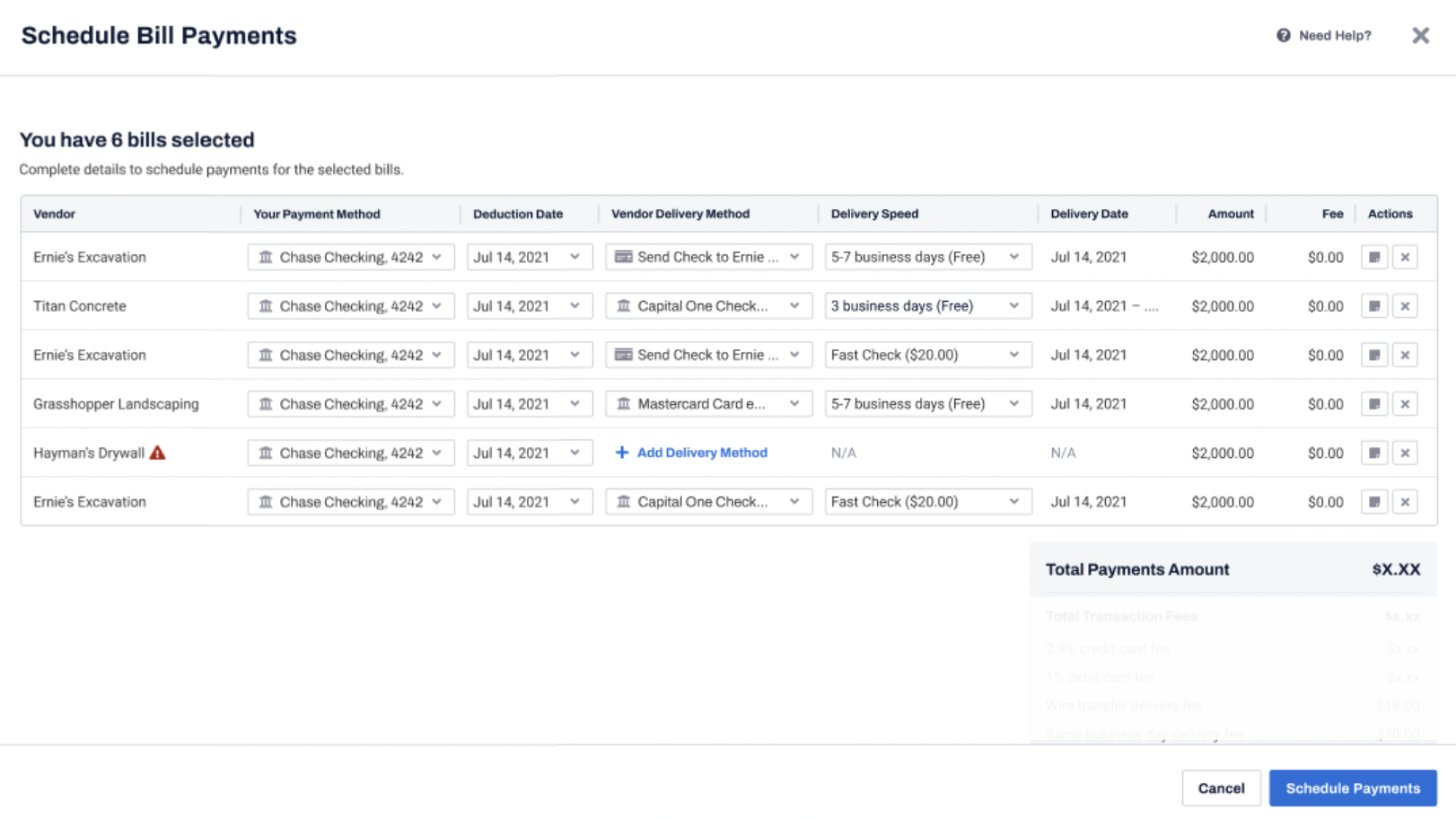
The process of paying a batch of bills is very similar to paying a single bill. The difference is that for each bill you will separately decide your payment method, deduction date, vendor’s delivery method, delivery speed and delivery date.
- Log in to Built Pay.
- Go to the Pay Bills dashboard.
- Go to the Received list.
- Check the box to the left of the bills you’d like to pay. The selected invoices will be marked with a blue vi sign.
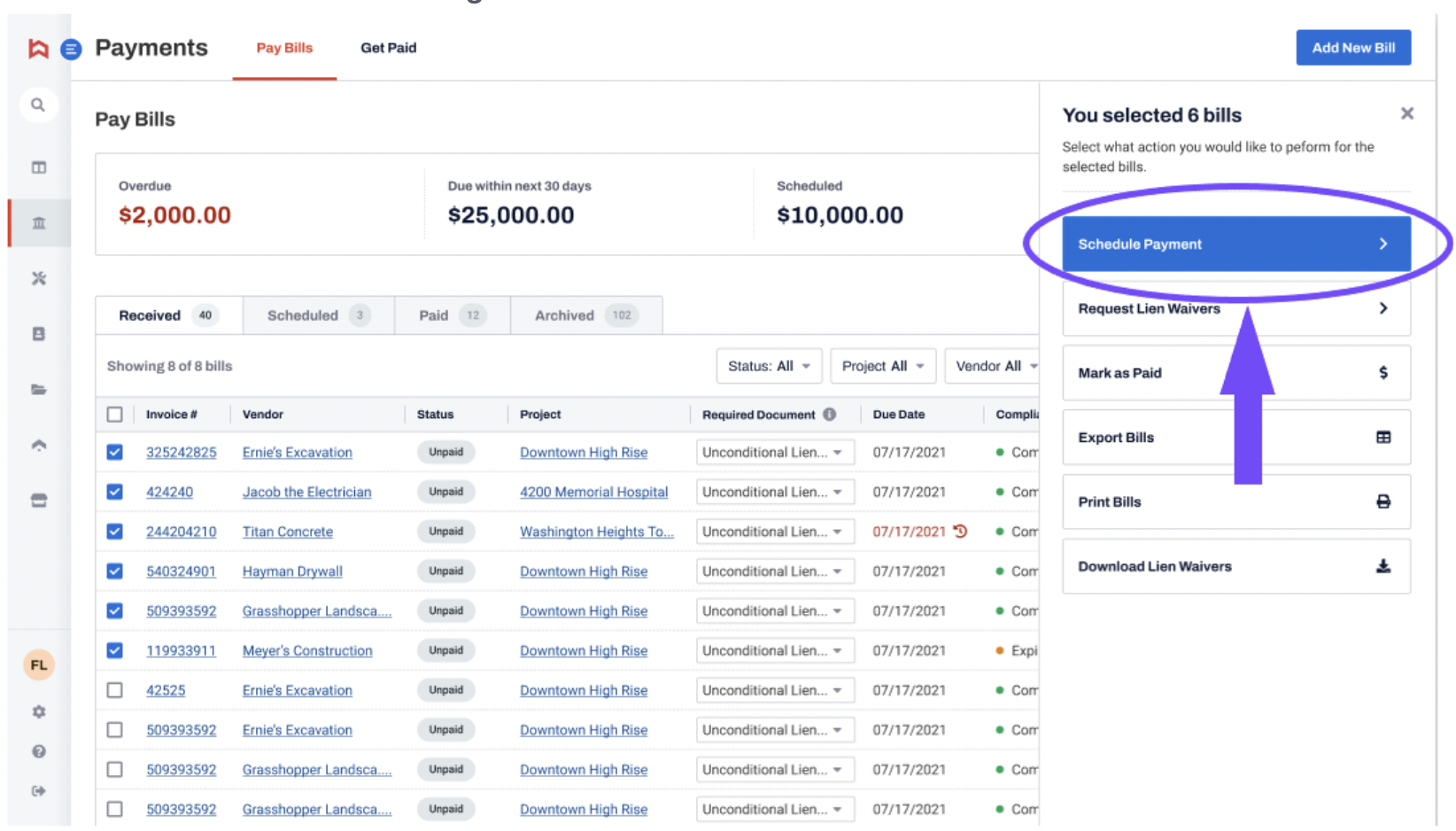
- Click Schedule Payment.
- Select your payment method for each bill.
- Select your vendor’s delivery method for each bill.
You will receive a summary of all your selected bills. You can make changes to any bill or click Schedule Payments to confirm and pay.
- When the payment is successful you’ll see a message at the bottom of your dashboard.
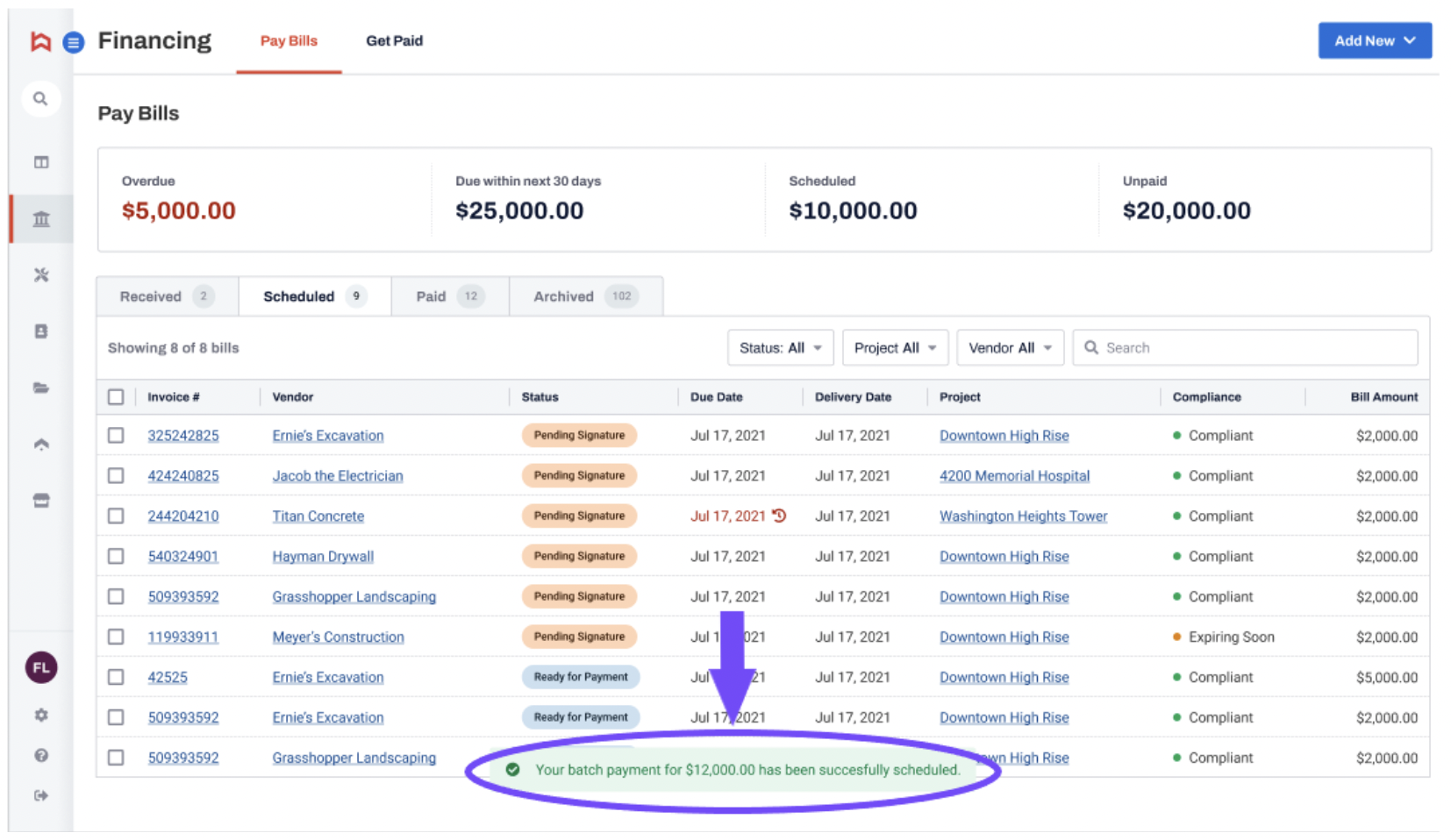
What happens after you made the payment:
For single payment or batch payments, your vendors will receive an email notifying them that a payment is on its way. Should your vendor need to sign documents, your payment will be pending until these documents are uploaded to the system. Learn here about What will my vendor see?.